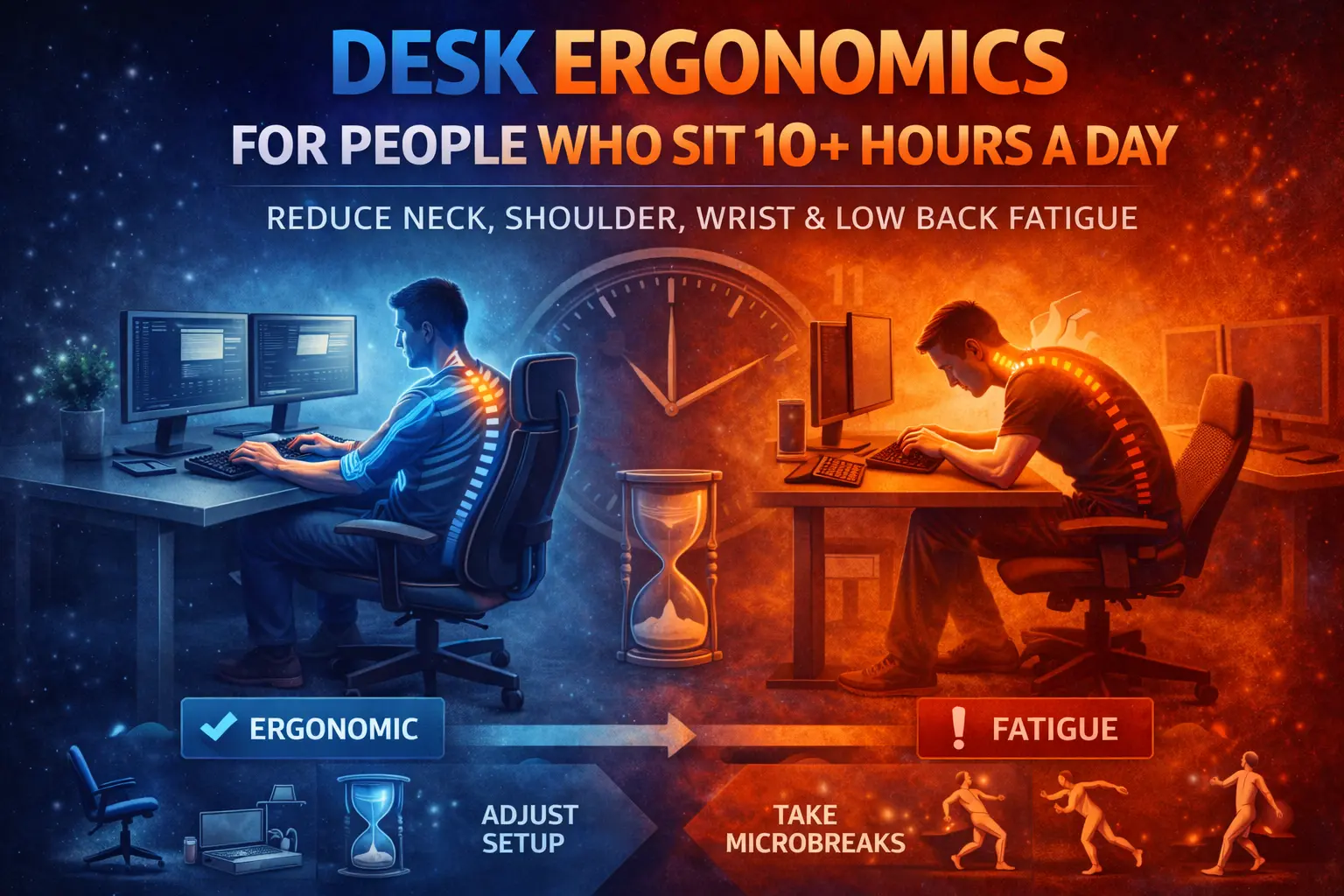
Desk Ergonomics for People Who Sit 10+ Hours a Day
A long-session setup system for work + gaming that reduces neck, shoulder, wrist, and low-back fatigue—without chasing “perfect posture.”
Quick answer: the 5-lever ergonomics system
Desk ergonomics for 10+ hours is not a “good posture” pose. It’s a system that makes neutral positions easier than bad ones. Control these five levers:
- Desk height: elbows relaxed, shoulders down (no shrugging).
- Monitor position: centered, close enough to prevent neck-forward posture.
- Chair + pelvis support: stable feet, supported pelvis, slight recline.
- Keyboard + mouse geometry: neutral wrists, minimal reach, sensible tilt.
- Micro-movement: tiny resets all day beat one big stretch later.
If you fix only one thing today: bring your screen closer and pull your mouse in. Reach is a fatigue multiplier.
What “desk ergonomics” really means for 10+ hour sitters
Desk ergonomics is designing your workstation so you can repeat the same tasks for hours with minimal joint stress and minimal accumulated tension.
For long sessions, the goal is not “perfect posture.” The goal is position durability: when focus drops and you stop thinking about your body, your setup still nudges you toward neutral.
Practical definition: A good setup makes it easy to keep neck neutral, shoulders relaxed, wrists straight, and hips supported—even at hour 9.
Why your setup feels fine at hour 2 and awful at hour 8
Long-session pain is usually accumulated micro-stress, not one dramatic mistake. Small angles held too long (neck forward, wrists extended, shoulders elevated) add up.
Fatigue also changes your posture automatically. You start neutral. Then you collapse. Then you reach. Ergonomics is about making those “lazy defaults” less damaging.
The 3 fatigue multipliers most people ignore
- Reach: every extra centimeter forward pulls head and shoulders forward too.
- Height mismatch: slightly too high = shrugged shoulders; slightly too low = collapsed torso.
- Static time: even “good posture” becomes bad when you freeze there.
The 5 levers that actually control fatigue
1) Desk height (your shoulder and wrist baseline)
Your desk height decides what your shoulders and wrists do all day. If it’s wrong, everything downstream compensates.
- Target: elbows relaxed (~90–110°), shoulders down, forearms supported.
- Red flag: your traps/neck feel “on” while typing.
- Fix: lower the desk or raise the chair (and add a footrest if feet lose contact).
Internal links: How Desk Height Quietly Destroys Comfort (Work + Gaming) • Work and Gaming Ergonomics (Hidden One-Desk Problem)
2) Monitor position (neck-forward prevention)
Monitor ergonomics is mostly distance + centering. Most setups fail because the screen is too far away, so you lean in.
- Distance: close enough that you don’t “hunt” forward to read.
- Height: top third near eye level (adjust based on comfort/vision).
- Centered: center the monitor to your torso, not to the desk.
Rule: If you catch yourself leaning forward, the monitor is too far or the UI is too small. Fix distance first, then scale text.
3) Chair + pelvis support (low-back durability)
A chair doesn’t “fix posture.” It supports your pelvis so your spine isn’t doing constant muscular work.
- Seat height: feet stable (floor or footrest), thighs roughly level or slightly down.
- Support: gentle lumbar support, not an aggressive arch.
- Angle: slight recline often reduces spinal load over long sessions.
Internal links: Chair Marketing vs Reality • Lower Back Pain Isn’t a Chair Problem
4) Keyboard geometry (neutral wrists)
For long sessions, wrist extension is a silent killer. Many people “solve” this with gadgets instead of fixing angle and height.
- Target: wrists straight (neutral), not bent upward.
- Fix: flatten the keyboard; avoid steep front-feet tilt; consider slight negative tilt if needed.
- Center: keep the keyboard centered to your body (don’t type off-center all day).
Internal links: Keyboard Angle (Not Switch Type) Causes Wrist Fatigue • Why “Good Posture” Is the Wrong Goal
5) Mouse reach + space (shoulder + wrist load)
If your mouse is far away, you abduct the shoulder all day. If your mouse space is cramped, you tense grip and overuse wrist movements.
- Target: mouse close to keyboard, elbow near your side, minimal reaching.
- Fix: shift keyboard slightly left (right-hand mousers) or use a more compact keyboard to create space.
- Surface: stable glide reduces grip tension and micro-jerks.
Internal links: Mouse Space vs Wrist Pain • Why Most “Ergonomic” Mice Fail for Work + Gaming
10-minute setup sequence (do this in order)
If you change everything at once, you won’t know what helped. Use this sequence because each step changes what “correct” looks like next.
-
Step 1: Lock feet + pelvis first
Set chair height so feet are stable. If you must raise the chair to match desk height and your feet float, add a footrest (even a solid box).
-
Step 2: Set desk-to-elbow relationship
Elbows comfortably bent, shoulders relaxed. If shoulders rise while typing, desk is too high for your current chair height.
-
Step 3: Pull the monitor closer
Close distance reduces neck-forward posture. Most long-session neck pain starts here.
-
Step 4: Center keyboard, then pull mouse tight
Keyboard centered to torso. Mouse close enough that your elbow can stay near your side.
-
Step 5: Flatten keyboard tilt
Remove steep tilt. Aim for neutral wrists while typing.
Real-world note: In tiny apartments and one-desk setups, the biggest win is often reducing reach by rearranging the desk, not buying new gear.
Internal link: Desk Setups in Small Apartments (One Desk, Zero Compromise).
Symptom → fix map (fast diagnostics)
Use this to troubleshoot based on what you feel. Don’t treat symptoms with random accessories until you fix geometry.
| Symptom | Most likely cause | Best first fix |
|---|---|---|
| Neck tightness / “turtle neck” | Monitor too far or too low; text too small | Bring monitor closer; increase UI scale; center to torso |
| Shoulder/trap burn | Desk too high; mouse too far; shoulders elevated | Lower desk; pull mouse in; support forearms |
| Wrist pain while typing | Wrist extension from keyboard height/tilt | Flatten keyboard; adjust height; keep wrists neutral |
| Wrist pain while mousing | Cramped mouse space; high grip tension; excessive reach | Increase mouse space; reduce reach; relax grip |
| Low-back fatigue after hours | Pelvis unsupported; static sitting; no micro-movement | Support pelvis; slight recline; microbreak protocol |
Pros / cons: wrist rests (honest take)
Pros: can reduce hovering tension during pauses; can improve comfort for some.
Cons: often increases pressure on soft tissue; can encourage wrist extension if height is wrong; doesn’t fix reach or tilt.
Use rule: rest the palm/heel lightly during pauses, not the wrist joint while typing.
Work + gaming on one desk without breaking your body
One-desk ergonomics fails when you switch contexts and your body position changes: different keyboard angle, different mouse grip, different monitor distance, different posture “mode.”
The fix is not two setups. The fix is a single baseline geometry that supports both.
Work mode vs gaming mode: what should NOT change
- Monitor distance (keep it close enough in both).
- Mouse reach (don’t push it away just because you game).
- Desk height relationship (shoulders down in both).
What can change safely
- Chair recline (slightly more reclined for controller or relaxed play).
- Arm support strategy (more forearm support for long competitive mouse use).
- Input choice (controller sometimes gives wrists a break).
Internal links: The Dual-Use Desk System • The One-Desk Problem • Why Most Gaming Desks Fail for Work
Gear priorities (buy this, skip that)
Ergonomics spending should be brutally prioritized. Don’t buy “ergonomic” marketing before you fix geometry.
| Priority | Usually worth it | Usually overrated |
|---|---|---|
| High | Monitor arm (distance + centering), footrest (if needed), bigger mouse space | Random posture gadgets |
| Medium | Compact keyboard for reach reduction, supportive chair (if your current one is unusable) | “Ergo” mouse without testing grip + gaming needs |
| Low | Cosmetic upgrades that don’t change position | Expensive chair features that don’t fit your body |
Forward-looking note (2026 reality): The best “future desk tech” is still boring: better adjustability, better monitor placement, and less reach. Hardware that doesn’t change geometry rarely changes outcomes.
Internal link: The Future of Desk Tech in 2026.
Microbreak protocol that doesn’t kill focus
If you sit 10+ hours, breaks are not optional. But long breaks are unrealistic. Use microbreaks that don’t break concentration.
The 20–40 second reset (every 20–30 minutes)
- Eyes: look far away for 10 seconds.
- Neck: 2 slow chin tucks (gentle), then relax.
- Shoulders: 2 slow shoulder rolls down and back.
- Hands: open/close fists 10 times, relax grip.
- Stand: stand up for 10 seconds if possible.
Do not make this a “workout.” The goal is to interrupt static load and reset tension, not to stretch aggressively at your desk.
2-minute ergonomics scorecard (self-audit)
Answer honestly. If you score low, you don’t need motivation—you need geometry fixes.
- Monitor: centered to my torso and close enough that I don’t lean forward.
- Shoulders: stay relaxed while typing (no shrugging).
- Mouse: close enough that my elbow stays near my side.
- Wrists: neutral while typing and mousing (not bent up).
- Feet: stable on floor/footrest (not dangling).
- Movement: I do microbreaks at least a few times per hour.
Key takeaways
- For 10+ hour days, reach is the enemy. Pull screen and mouse closer.
- Desk height controls shoulders and wrists. Fix it early.
- Keyboard tilt often causes wrist extension. Flatten it.
- Chairs help, but pelvis support + micro-movement matters more than marketing.
FAQ
What’s the single best ergonomic change for 10+ hour days?
Reduce reach first: bring the monitor closer and keep the mouse close to the keyboard. Then set desk height so shoulders stay relaxed.
Should the top of my monitor be exactly at eye level?
Use eye level as a starting point, not a religion. The right height is the one that prevents craning your neck and keeps your eyes comfortable over long sessions.
Do I need a standing desk?
No. Standing desks help some people, but they don’t automatically fix monitor distance, mouse reach, or wrist angles. Fix geometry first. Then consider standing as a tool for movement variety.
Why do my wrists hurt even with a “good” keyboard?
Most often: wrist extension from keyboard height/tilt and reach to mouse. Flatten the keyboard, keep wrists neutral, and reduce reach.
How often should I take breaks if I’m trying to stay productive?
Microbreaks: 20–40 seconds every 20–30 minutes. They reduce accumulated tension without destroying focus like long breaks can.
Sources and further reading
These are reputable starting points for workstation ergonomics principles and long-session risk reduction:
- OSHA Ergonomics (overview)
- NIOSH Ergonomics (workplace guidance)
- UK HSE: Musculoskeletal disorders (MSD)
- Mayo Clinic: Office ergonomics
Entity mentions: OSHA, NIOSH, HSE, Mayo Clinic.
Comments
You need to log in to leave a comment.