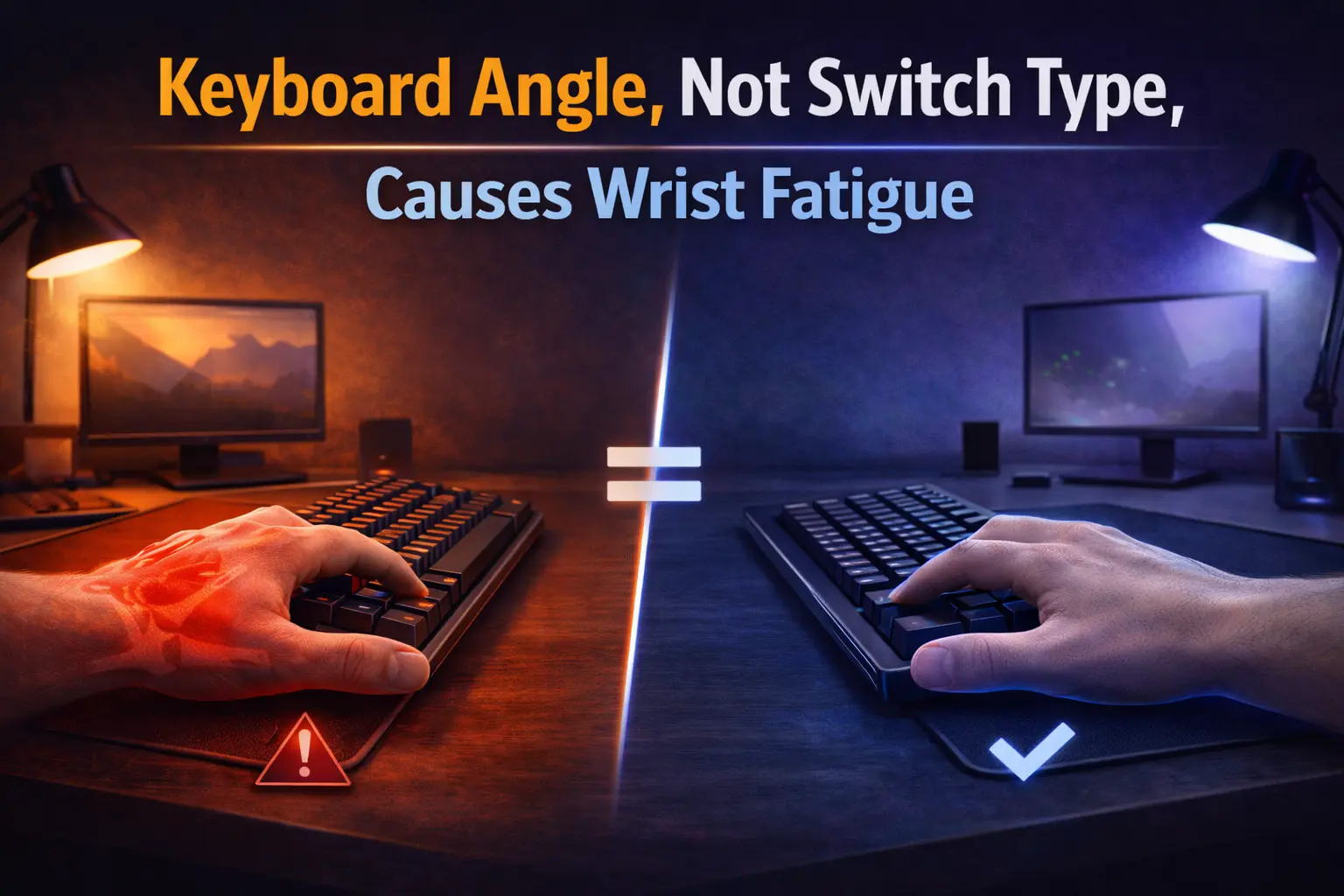
Keyboard Angle, Not Switch Type, Causes Wrist Fatigue
Keyboard angle is the most common reason people get wrist fatigue after long work + gaming sessions. Not switches. Not keycaps. Not brand. If your desk forces your wrists into extension for hours, your wrists will burn out even on “smooth” mechanical switches.
This post is about one thing: desk geometry. Fix that, and most “keyboard discomfort” problems shrink fast.
Table of Contents
- Definition: wrist extension (the real mechanism)
- Why switch type is a distraction
- Keyboard angles that cause fatigue
- Desk height is the multiplier
- The 10-minute fix (neutral or negative tilt)
- Dual-use desks: work + gaming without wrist overload
- Quick tests to confirm you fixed it
- Common mistakes that keep people stuck
- Angle vs switches: what actually moves the needle
- Three real setups (small desk, big desk, low-sens gaming)
- Accessories (wrist rests, trays, desk mats) without the hype
- FAQ
- Sources
Definition: Wrist Extension (What’s Actually Happening)
Wrist extension is when your wrist bends upward while your fingers reach the keys. It’s what happens when the keyboard sits too high relative to your elbows, or when you tilt the keyboard upward (rear feet up). Extension feels “normal” because it’s common, but over long sessions it becomes a slow endurance tax.
Here’s the key idea: wrists hate long, static positions. You can get away with extension for a short burst. You cannot get away with extension for six to ten hours of typing, clicking, and micro-adjusting.
Why it shows up late-session
Most people don’t feel wrist fatigue in minute 10. They feel it at hour 4, hour 6, or at the end of the day. That delay is why the wrong thing gets blamed. People blame switches because switches are obvious. Angle is not.
Signs you’re typing in extension
- Your wrists bend upward to reach the home row.
- Your forearms slope upward from elbows to keyboard.
- Your shoulders creep up during typing (you “shrug” without noticing).
- You rest weight on the heel of your palms while typing because hovering feels impossible.
- After long sessions, your wrists feel hot, stiff, or “tired,” even if fingers feel fine.
Why Switch Type Is a Distraction
Switch type affects finger feel and perceived effort. It can change how much force your fingers use. But it does not fix the primary driver of wrist fatigue: where your wrists sit in space.
You can build a premium board with the lightest switches and still get wrist fatigue if your desk geometry forces extension. You can also type on a basic keyboard and feel fine if your height and angle are dialed in.
What switches can help (and what they can’t)
- Can help: finger effort, sound preference, enjoyment, perceived smoothness.
- Can’t fix: desk too high, keyboard too far away, wrists bent upward, shoulders shrugged.
If you want a clean decision rule: Fix geometry first, then optimize components. Otherwise you’re tuning the engine while the wheels are misaligned.
Keyboard Angles That Cause Fatigue
Keyboard “angle” is simple: the tilt of the board relative to the desk surface. Most people tilt the keyboard upward because it “feels like the keys face you.” That’s intuitive and usually wrong for long sessions.
1) Positive tilt (rear feet up)
Positive tilt pushes the back of the keyboard up, which typically increases wrist extension. It can feel fast at first because your fingers drop into the key wells. Over long sessions it loads the wrist position constantly.
2) Flat (feet down)
Flat is the default best move. It reduces extension for most people immediately. It also makes your posture easier to keep consistent between work and gaming.
3) Negative tilt (front edge slightly higher)
Negative tilt is the “advanced” version of flat. It can reduce wrist extension even more, especially if your desk is a little high or you use a thick desk mat. It’s not about being extreme. A little goes a long way.
Angle is only half the story
Angle interacts with height. A flat keyboard on a desk that’s too high can still force extension. A slight negative tilt can mask a high desk, but it’s better to solve height if you can.
Desk Height Is the Multiplier
Desk height decides whether your arms can stay neutral. If the desk is too high, you will pay for it somewhere: wrists, shoulders, neck, or all three.
The target position (simple, practical)
- Elbows near your sides (not flared out).
- Forearms roughly level while typing (not climbing upward).
- Wrists straight (not bent up).
- Shoulders relaxed (not lifted).
If you can hit those four, you’re ahead of most “ergonomic” setups on the internet.
Why dual-use desks make this harder
Work posture and gaming posture often differ. At work, you may lean in, type more, and use short mouse movements. In gaming, you may use lower sensitivity, bigger mouse sweeps, and a more locked-in posture. If your height and keyboard angle are wrong, gaming amplifies wrist fatigue because the wrist is working for both keyboard and mouse control.
The 10-Minute Fix (Neutral or Negative Tilt)
Do this in order. Don’t skip steps. Don’t buy anything yet.
Step-by-step
- Put the rear feet down. Go flat immediately.
- Pull the keyboard closer. Your elbows should not reach forward.
- Set chair height. Raise or lower until forearms are roughly level at the keys.
- Check shoulders. If shoulders lift, desk is too high or chair is too low.
- Adjust keyboard angle. If wrists still bend up, aim for slight negative tilt.
- Re-check reach. If you reach forward, you’ll collapse posture and load wrists again.
What “slight negative tilt” means in real life
It means the front edge is a bit higher than the back edge. Not a dramatic wedge. If you can type without wrists bending up, you’re done. The “perfect” angle is the one that keeps wrists neutral while you work normally.
How to avoid over-correcting
- If negative tilt makes your fingers feel like they’re climbing, reduce it.
- If your wrists still bend upward, increase it slightly or lower the keyboard.
- Comfort first, ideology last.
Dual-Use Desks: Work + Gaming Without Wrist Overload
Niterria’s core problem is not “office ergonomics.” It’s mode switching on one desk. The best dual-use setups remove friction while keeping geometry consistent.
Principle 1: Keep the keyboard on one height plane
If your work keyboard is higher than your gaming keyboard, your wrists will constantly adapt. That adaptation is fatigue. Your goal is to make both modes feel like the same physical posture.
Principle 2: Align keyboard and mouse height
If the mouse sits lower or higher than the keyboard, you stack strain. Your wrist should not climb up and down between keyboard and mouse. This is especially critical if you game at low sensitivity, because the mouse becomes a full-time tool, not a side tool.
Principle 3: Center the keyboard for the “main activity”
For work-heavy days, center the keyboard and keep the mouse close. For gaming-heavy nights, center the keyboard relative to your body and give the mouse real space. Don’t center the keyboard relative to the monitor if your body ends up twisted.
Practical dual-use layout idea
- Keyboard sits centered on the desk edge you actually use.
- Mouse sits on the same plane, with enough space for your sens.
- When switching modes, you slide items laterally, not forward/back.
Why this matters: forward/back movement changes reach, which changes shoulder position, which changes wrist angle. Lateral movement mostly preserves geometry.
Quick Tests to Confirm You Fixed It
You don’t need gadgets to validate the fix. Use tests that match real sessions.
Test 1: The 20-second wrist check
- Hands on home row.
- Look at your wrists from the side.
- If wrists bend upward, you’re still in extension.
Test 2: The 5-minute “no thinking” test
Type normally for five minutes without trying to be perfect. If your posture collapses into wrist extension the moment you stop focusing, your setup isn’t stable. Stable setups support good posture automatically.
Test 3: The end-of-session signal
After a long block (work or gaming), ask: do you feel fatigue in wrists first, or in general (eyes, focus, energy)? If wrists are first, geometry is still leaking strain.
Common Mistakes That Keep People Stuck
Mistake 1: Buying switches to solve geometry
Switch changes can be enjoyable. They are not the fix. If you keep wrist extension, you’re solving the wrong layer.
Mistake 2: Using a wrist rest as a weight-bearing crutch
Wrist rests are for pauses. If you load your wrist on a rest while typing, you often increase pressure and reduce micro-movement. That can make fatigue worse for many people.
Mistake 3: Keyboard too far back
When the keyboard is far back, you reach. Reaching lifts shoulders and changes wrist angle. Keep the keyboard closer than you think, especially for long sessions.
Mistake 4: Fixing angle but ignoring chair height
Angle without height is half a fix. If the desk is too high, you’ll compensate no matter what.
Mistake 5: Only optimizing work mode
If you optimize for work but gaming requires a different posture, you will still get fatigue at night. Dual-use means both modes have to share a stable geometry.
Angle vs Switches: What Actually Moves the Needle
Here’s a practical priority list. Follow it and you’ll save time and money.
What to fix first (ranked by impact)
| Priority | Fix | Why it matters | Impact on wrist fatigue |
|---|---|---|---|
| 1 | Desk/chair height alignment | Sets arm position and reduces forced extension | Very high |
| 2 | Keyboard angle (flat or slight negative) | Directly reduces wrist extension | High |
| 3 | Keyboard distance + elbow position | Prevents reaching and shoulder lift | Medium-high |
| 4 | Mouse height and proximity | Prevents wrist stacking between devices | Medium |
| 5 | Switch weight/type | Changes finger effort, not wrist geometry | Low-medium |
Actionable Examples (3 Setups That Actually Work)
Scenario A: Small desk, limited depth
Small desks force you to push the keyboard back. That increases reach and wrist extension. Your strategy is to protect geometry first, then fit gear around it.
- Keyboard closer to desk edge than “aesthetic” setups.
- Rear feet down (flat) as default.
- Mouse on the same plane; reduce clutter between keyboard and mouse.
- If you must push something back, push decor, not input devices.
Scenario B: Big desk, lots of space, posture still bad
Big desks create a different trap: people place the keyboard too far back because they can. More space doesn’t mean better geometry.
- Bring keyboard forward until elbows stay near your body.
- Match mouse distance to keyboard distance (don’t reach for one and not the other).
- Keep forearms level; adjust chair height accordingly.
- If you want negative tilt, keep it mild. Confirm with the wrist check.
Scenario C: Low sensitivity gaming with large mouse sweeps
Low sens makes your wrist and forearm work for aim control. If your keyboard angle is forcing extension, gaming becomes the accelerator pedal on fatigue.
- Prioritize neutral wrist posture over “gaming keyboard tilt.”
- Keyboard and mouse must be the same height plane.
- Give the mouse space without pushing the keyboard away.
- If you angle the keyboard for gaming (rotated slightly), confirm wrists stay neutral.
Accessories Without the Hype
Wrist rest
Use it as a parking pad between bursts. If you rely on it during typing, check whether your setup is too high or too far away. A wrist rest should not be compensating for bad geometry.
Keyboard tray
A tray can be a legit solution when the desk is too high and can’t be lowered. Treat it as a geometry tool. If it introduces wobble or forces awkward mouse placement, it can create new issues. The objective is still the same: forearms level, wrists neutral.
Desk mat thickness
Thick mats subtly raise the keyboard and mouse, which can push you back into extension if you were barely neutral. If you add a thick mat and fatigue returns, this is one of the first things to check.
Split/ergonomic keyboards
They can help some people, especially for shoulder and forearm alignment. But they still won’t save you from a desk that’s too high and a keyboard that’s tilted up. Geometry first.
Internal Links (Niterria)
- Dual-Use Desk Setup Guide (Work + Gaming System)
- The One-Desk Problem: Why Your Setup Fails After 8 Hours
- Desk Height for Work + Gaming (Neutral Arms Setup)
- Mouse Space vs Wrist Pain (When your mouse layout breaks you)
Key Takeaways
- Angle beats switches for wrist fatigue in long sessions.
- Start flat. Move to slight negative tilt if wrists still extend.
- Desk height is the multiplier: forearms level, shoulders relaxed.
- Dual-use setups must preserve geometry across work and gaming modes.
- Optimize components only after posture is stable without effort.
FAQ
What keyboard angle is best to reduce wrist fatigue?
For most people, flat (rear feet down) is the best start. If wrists still bend upward, move toward a slight negative tilt until wrists look neutral during normal typing.
Do mechanical switches cause wrist fatigue?
Switches can change finger effort, but wrist fatigue is more commonly driven by desk height and keyboard angle that force the wrists into extension for long periods.
Should I use a wrist rest while typing?
Use it between typing bursts. If you need a wrist rest to tolerate typing, your keyboard is likely too high or too far away.
Is a keyboard tray necessary?
Not always, but it can help when the desk is too high and can’t be lowered. The goal is to bring the keyboard down so forearms stay level and wrists stay neutral.
What if I switch between a work keyboard and a gaming keyboard?
Keep both boards on the same height plane and keep angle consistent. Sliding laterally for mode switching is usually better than moving devices forward/back.
Sources
About the author
Nojus Ramonas publishes practical dual-use desk systems on Niterria—built for long work blocks and long gaming sessions with minimal friction, clean geometry, and repeatable setups.
Last updated: January 12, 2026
Comments
You need to log in to leave a comment.