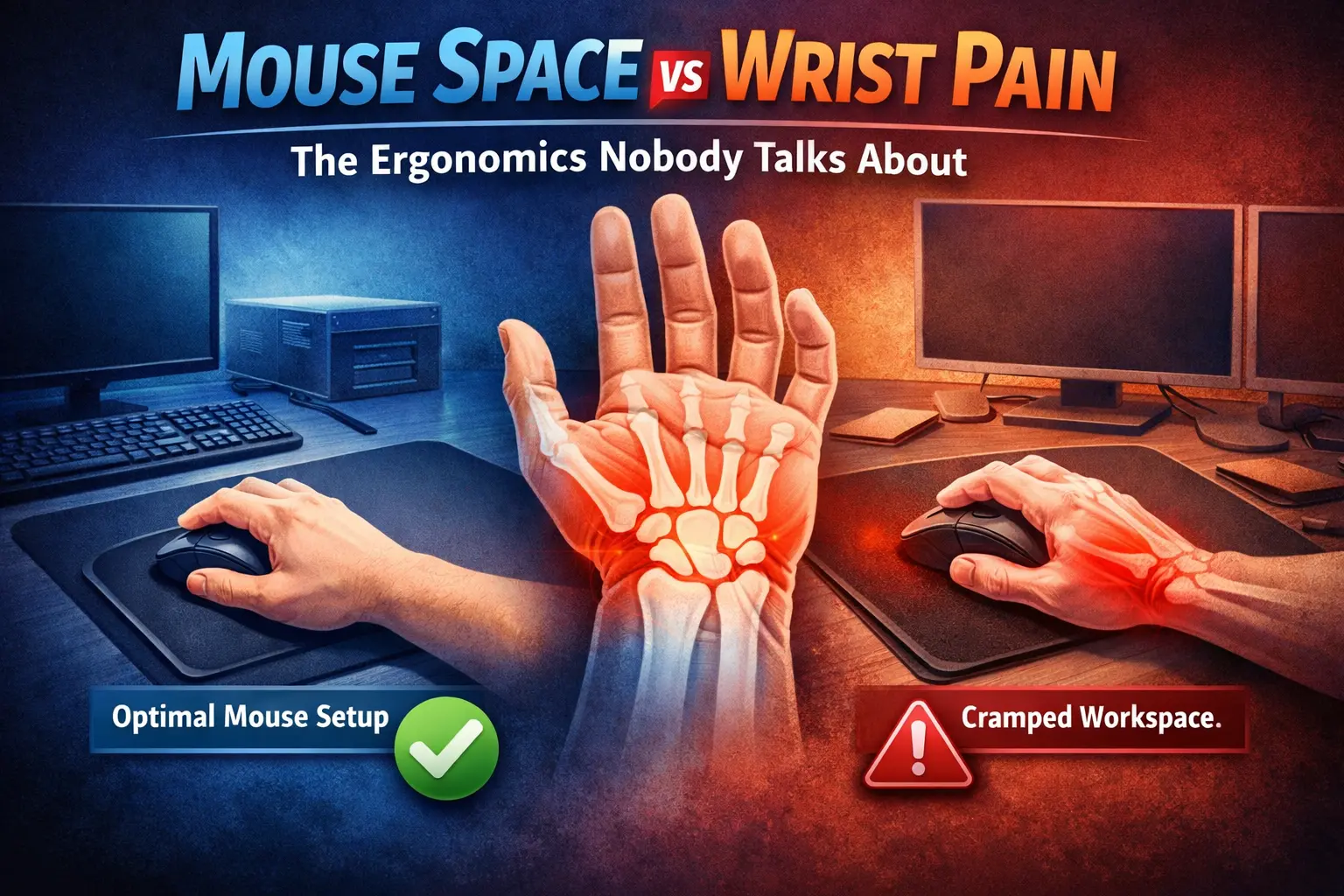
If you have wrist pain at your desk, stop hunting for another “ergonomic mouse” for a minute. Most of the time, the real issue is mouse space: not enough room to move your mouse with your forearm, so your wrist takes over and gets punished for it. This guide shows the desk-width math, the layout fixes, and the quick tests that reduce wrist strain in work + gaming setups.
You’ll see why “better mouse shape” is often a distraction, how to set up your keyboard + mouse zone, and what to change today without buying anything.
Table of Contents
- The 15-second answer (snippet block)
- Definition: what “mouse space” actually means
- Why low mouse space causes wrist pain
- 60-second self-test
- Desk-width math: how much mouse space you need
- Layout fixes that work (no new gear)
- DPI/sensitivity: the hidden multiplier
- Laptop setups: why they wreck your wrist
- Pros/cons: big pad, narrow desk, compact keyboard
- Comparison table: “mouse upgrade” vs “space upgrade”
- Common mistakes that keep you stuck
- Related Niterria guides
- FAQs
- Sources (authority links)
- About the author
The 15-second answer (snippet block)
Wrist pain usually comes from moving your mouse with your wrist instead of your forearm. That happens when your desk is too narrow, your keyboard is centered, or your mouse zone is blocked. Fix it by: (1) freeing a dedicated mouse zone, (2) shifting the keyboard left (or going smaller), (3) supporting the forearm, and (4) matching DPI/sensitivity so you’re not “flicking” all day.
Definition: what “mouse space” actually means
Mouse space is the usable horizontal area where your mouse can travel without forcing your wrist to bend sideways or your elbow to flare out. It’s not “desk width on paper.” It’s the space you can actually use after your keyboard, mug, phone, mic arm, and edge-of-desk posture steal room.
Two types of movement (and only one scales)
- Wrist-only movement: fast in tiny spaces, high strain over long sessions.
- Forearm-led movement: slower, smoother, far more sustainable for hours.
Why low mouse space causes wrist pain
When your mouse can’t travel freely, your body “solves” the problem by substituting wrist deviation: you start steering with sideways wrist angles and micro-tension. Over time, that’s a reliable recipe for discomfort, numbness, and irritation around the wrist/forearm.
What’s actually happening
- Compression + repetition: small muscles and tendons do the work that bigger muscles should do.
- Side-bending (ulnar/radial deviation): you keep the cursor moving but at a joint angle that doesn’t like hours of it.
- Edge pressure: the desk edge digs into the forearm/wrist when you “anchor” yourself for control.
This is why people can buy three mice and still hurt: they changed the shape, not the constraints.
60-second self-test
Test A: the “forearm glide” check
- Put your hand on the mouse.
- Keep your wrist neutral (not bent sideways).
- Move the cursor left-to-right using your forearm (elbow/shoulder). Don’t “steer” with the wrist.
If you run out of room quickly, bump your keyboard, or hit clutter, you have a mouse-space problem.
Test B: the “edge-anchor” check
- Notice if your wrist/forearm presses into the desk edge while you track or aim.
- If yes, you’re likely anchoring for control because the space is too tight (or DPI is mismatched).
Test C: the “keyboard trap” check
If your keyboard is centered and your mouse is pushed to the far right, your shoulder abducts and your wrist compensates. This is common on 120–140 cm desks and almost guaranteed on 100–110 cm desks.
Desk-width math: how much mouse space you need
Here’s the simplest rule that holds up in real setups: you need a dedicated mouse zone, and it must be wide enough that you can track without wrist steering.
Quick sizing guide
| Use case | Minimum usable mouse zone (width) | Better target (width) |
|---|---|---|
| Office work / browsing | 25–30 cm | 30–40 cm |
| Mixed work + gaming | 30–35 cm | 40–50 cm |
| Low-sens FPS / aim-heavy | 40 cm | 50–60+ cm |
Usable means: clear surface, no hitting keyboard, no mug, no mic stand, no phone pile, and no forced wrist angle to keep the mouse on the pad.
Desk width reality check
If you’re on a 120 cm desk with a full-size keyboard centered, you often end up with a cramped mouse zone. If you’re on 100–110 cm, you’re basically forced into compromises unless you change layout.
Layout fixes that work (no new gear)
Fix 1: shift the keyboard left (immediately frees mouse space)
- Move your keyboard so the G/H keys are roughly centered with your body (not the keyboard itself).
- Keep the mouse closer to your midline instead of reaching outward.
- Re-test the forearm glide.
This single change can solve more “mystery wrist pain” than most mouse purchases.
Fix 2: reclaim the “dead zone”
- Move the mug, phone, and notepad above the keyboard or to the far left.
- Don’t park gear inside your mouse arc. Your body will pay for it.
Fix 3: forearm support (without a wrist rest trap)
Aim for forearm support, not a hard wrist anchor. If your wrist rests heavily while mousing, you tend to pivot at the wrist and press into the desk edge.
- If your chair arms are usable: set them to lightly support forearms, not jam shoulders up.
- If chair arms are bad: use a desk mat that softens edge pressure, but still keep movement forearm-led.
Fix 4: rotate the keyboard slightly (small desks)
On narrow desks, a slight keyboard angle can create more mouse space while keeping posture sane. If your wrist pain is right-sided, turning the keyboard a few degrees can reduce outward reach.
Fix 5: switch “mode” instead of compromising (dual-use setups)
Your work mode can tolerate less travel; your gaming mode usually can’t. Create a 10-second switch:
- Work: keyboard more central, mouse closer, higher sensitivity.
- Game: keyboard shifts left, mouse zone expands, lower sensitivity if you aim.
This aligns with the broader principle in the pillar: build one desk that can switch states fast.
DPI/sensitivity: the hidden multiplier
Mouse space and sensitivity are linked. If your sensitivity is too low for your available space, you’ll “flick” harder and more often. If sensitivity is too high, you’ll clamp down for control and create constant micro-tension.
Practical tuning (no spreadsheets)
- Pick one DPI and keep it stable for a week.
- Set in-game/OS sensitivity so you can cross the screen without hitting the pad edge.
- If you keep slamming into the keyboard or pad edge, you need more space or slightly higher sensitivity.
The goal is not “max speed.” The goal is low tension plus control.
Laptop setups: why they wreck your wrist
Laptops combine three problems: high keyboard position, cramped mouse space, and awkward arm angles. The most common outcome is wrist steering and edge pressure.
Minimum viable laptop fix
- External mouse + external keyboard (even cheap) buys you posture freedom.
- Put the laptop on a stand/books to bring the screen up, then position keyboard/mouse correctly.
Pros/cons: big pad, narrow desk, compact keyboard
Option 1: oversized mousepad/desk mat
Pros:
- Smooth forearm glide, reduced edge pressure, flexible zones.
Cons:
- If your desk is narrow, the mat doesn’t create space—it just covers the problem.
Option 2: keep a narrow desk and “adapt”
Pros:
- Costs nothing.
Cons:
- Usually forces wrist steering long-term.
- Gaming aim suffers or demands higher tension.
Option 3: smaller keyboard or shifted layout
Pros:
- Directly increases usable mouse space (the root fix).
- Brings mouse closer to midline (less reach, less strain).
Cons:
- Learning curve if you rely on numpad or specific key clusters.
Comparison table: “mouse upgrade” vs “space upgrade”
| Change | What it really fixes | Best for | Fails when |
|---|---|---|---|
| Buy a new ergonomic mouse | Grip comfort, click angle, minor wrist posture improvements | Hand fit issues, pinch points | Desk is narrow or mouse is forced far right |
| Shift keyboard left | Mouse space + midline reach | Most people, most desks | You refuse to move anything |
| Declutter mouse arc | Uninterrupted forearm travel | Small desks, busy setups | Items keep creeping back |
| Increase usable mouse zone | Root cause reduction (less wrist deviation) | Work + gaming, long sessions | Desk width is non-negotiable |
| Tune DPI/sensitivity | Reduces flicking and grip tension | Gamers, precision work | You change settings daily |
Common mistakes that keep you stuck
- Centering the keyboard because it “looks right,” then forcing the mouse to the edge.
- Using a wrist rest while mousing and anchoring hard (forearm should carry the movement).
- Blaming the mouse before measuring usable mouse space.
- Running ultra-low sens on a tiny desk and flicking aggressively to compensate.
- Letting clutter live in the mouse arc (phone, mug, mic base, controller).
Key takeaways
- Wrist pain is often a space problem, not a mouse problem.
- Build a usable mouse zone that supports forearm-led movement.
- Shift the keyboard left and keep the mouse closer to your midline.
- Match DPI/sensitivity to your available space to reduce tension.
- For dual-use desks, a 10-second layout switch beats “one compromised layout.”
Related Niterria guides
- Dual-Use Desk Setup Guide
- Why Most Ergonomic Mice Fail for Mixed Work + Gaming
- How Desk Height Quietly Destroys Comfort (Work + Gaming)
- Work + Gaming Ergonomics: The Hidden One-Desk Problem
- The One-Desk Problem: Why Your Setup Fails After 8 Hours
- How Desk Clutter Increases Mental Fatigue
FAQs
How do I know if my pain is “mouse space” or “mouse shape”?
If you can’t move left-to-right with a neutral wrist using your forearm (without hitting keyboard/clutter), it’s mouse space. If you have pinch points, numb fingertips, or grip pain even with good space, then mouse shape matters.
Is a vertical mouse the solution?
Sometimes, but it’s not magic. A vertical mouse can improve forearm rotation posture, but if your desk forces wrist steering, you’ll still have issues. Fix space first, then evaluate mouse shape.
What’s the fastest fix with a small desk?
Shift the keyboard left, clear the mouse arc, and bring the mouse closer to your midline. If you can, reduce keyboard footprint.
Does a desk mat help or is it just aesthetic?
It helps if it reduces edge pressure and improves glide. It does not replace actual mouse space.
My wrist only hurts when gaming. Why?
Gaming often involves longer tracking and faster lateral movement. If your work setup barely works, gaming exposes the limits. Use a “gaming mode” layout with a larger mouse zone and tuned sensitivity.
Should I use a wrist rest while gaming?
Generally avoid anchoring the wrist for mouse control. Light forearm support is usually better than hard wrist contact.
Sources (authority links)
Outbound reading for general ergonomics and repetitive strain context:
- CCOHS: Office ergonomics (keyboard/mouse basics)
- NIOSH: Ergonomics topic overview
- Cleveland Clinic: Carpal tunnel overview
About the author
Niterria is a desk-setup journal focused on dual-use systems for work and gaming. We test layouts, ergonomics, and long-session comfort in real one-desk setups. Read more.
Comments
You need to log in to leave a comment.